> For the complete documentation index, see [llms.txt](https://rust-console-edition.gitbook.io/community-servers/llms.txt). Markdown versions of documentation pages are available by appending `.md` to page URLs; this page is available as [Markdown](https://rust-console-edition.gitbook.io/community-servers/management-settings/restarts-and-backup.md).
# Restarts and Backup
## Restarts
{% hint style="danger" %}
***It is strongly recommended to set a regular wipe schedule!*** \
\
***Servers without a scheduled wipe every month (at least) will be prone to instability, client crashes and server crashes.***
{% endhint %}
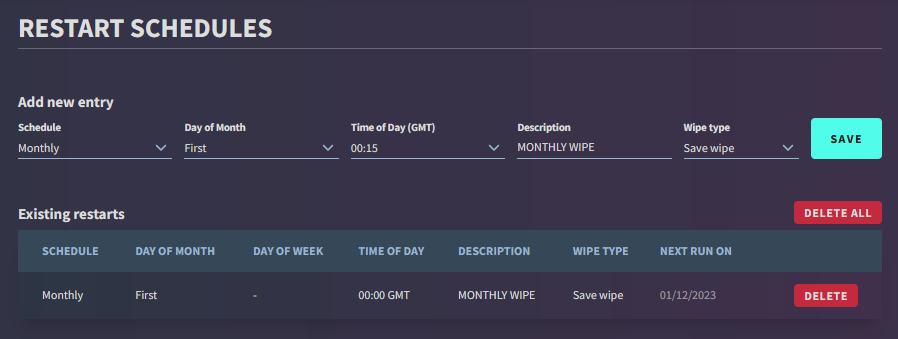
This page provides multiple options for scheduled wipe times, daily restarts, etc.
You will be presented with the following options:
The GPORTAL Scheduling Page
The NITRADO Scheduling Page
### Schedule
This controls how often the server will restart automatically.
* Daily (essential for creating backups)
* Weekly
* Bi-Monthly (every 2 weeks) (GPORTAL only)
* Monthly
***
### Day of month
This determines which day the server will restart.
* First Day of the Month
* Middle of the Month
* Last Day of the Month
***
### Time of day
This controls what time the server will restart
* This is in GMT, so make sure to adjust for your time-zone accordingly!
***
### Description
This is a reference for the Owner.
* Appears on GPORTAL only
***
### Wipe type
This controls what happens when the server restarts.
#### Save Wipe
* Only erases player buildings/inventories.
#### Blueprint Wipe
* Erases Blueprint/Tech Tree progress.
#### Full Wipe
* Combines both of the above options for a complete reset of all progress.
***
### Creating a daily restart
To create a daily restart, simply enter the following into the input boxes:
**Schedule**
* Daily
**Time of Day**
* Your preferred time (GMT)
**Description**
* Daily Restart
**Wipe Type**
* No Wipe
After this has been created, the Backups option will become available to you.
***
## Backups
{% hint style="danger" %}
***It is strongly recommended to create regular backups of your server!*** \
\
***Servers without automatic backups can lead to loss of progress and client instability.***
{% endhint %}
The Backups page is a very useful tool, especially for busy servers.
Here, you can enable Automatic Backups, which will save your server’s current form every time the server is restarted through the ***Restarts*** system.
You can have up to 3 daily restarts active at once, or you can create any amount of manual backup, provided you have the storage space available.
***
### Creating an automatic server backup
1. Set up an **automatic daily restart** on your server
2. Enable the toggle at the top of the ***Backups*** page
3. You’re done! The server will now save a backup every time the server restarts (daily)
GPORTAL Automatic Backups
NITRADO Automatic Backups
***
{% hint style="warning" %}
*NITRADO currently does not provide the option to back up your server manually.*
{% endhint %}
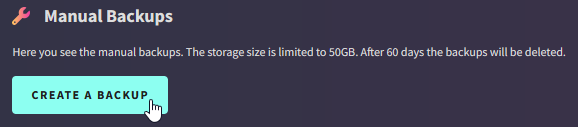
### Creating a manual server backup (GPORTAL Only)
1. Set up an **automatic daily restart** on your server
2. Press the \[Create a Backup] button
3. Follow the prompt, and continue
4. Wait for the server backup to be created
5. You’re done! The server now has a backup that you can restore any time